
Your first visit as a client
Use the address in your DigLab invitation. The DigLab client portal is the ongoing sign-in page; your onboarding invitation may open a specific flow directly.
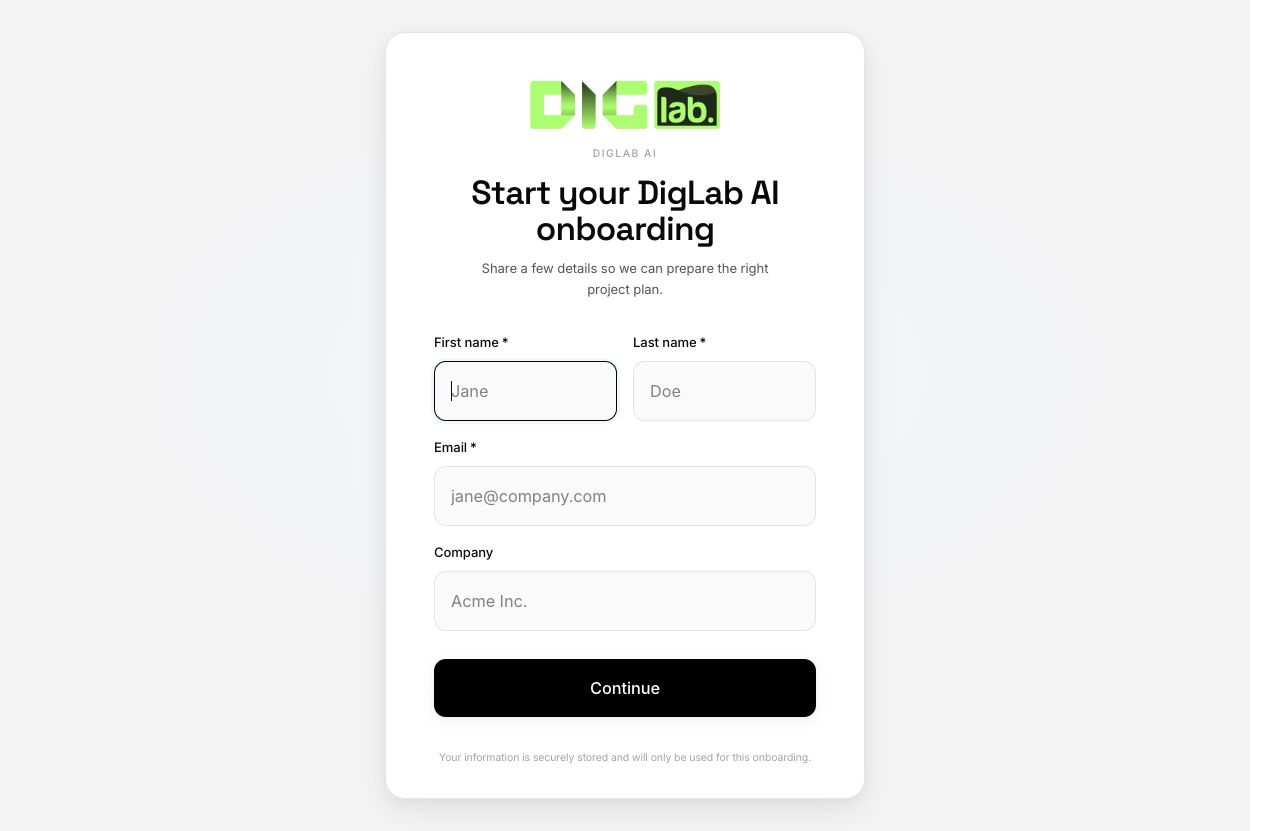
Sign in with the invited email
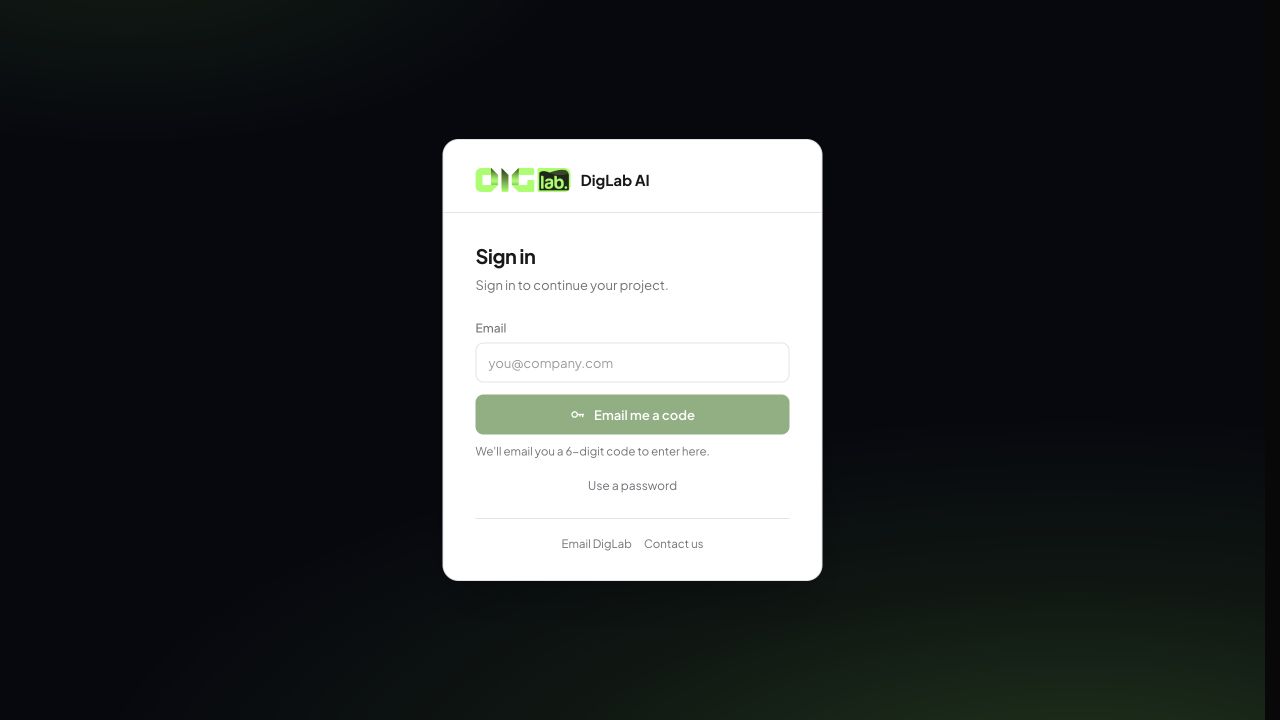
The current portal offers an emailed six-digit code and a password option. Enter the email that was invited. Choose Email me a code, check that inbox and its spam folder, then enter the latest code on the sign-in page. Never send a code or password to someone in chat. If you already have a password, choose Use a password. Use the recovery option shown by the sign-in page if needed. DigLab cannot make another email address work simply by forwarding an invitation to it; ask the team to check the invited membership.
Find your next step
After access is accepted, confirm the client/company name. Start with the home page, assigned tasks, onboarding requests and project milestones available to you. The agency can customize navigation, so your menu may differ from another client's.
Complete a request
Read the instructions, gather the requested information, fill required fields and use the step's continue or completion control. Wait for visible confirmation before closing the page. For a file, check that the intended filename appears after upload. For an approval, review the current version before choosing an approval action.
When something is missing
Check the email identity, company/account and exact invitation. A flow invitation does not automatically grant access to every portal account. Contact DigLab with the step title and a sanitized screenshot. Do not create a second account to work around a missing membership.